Install Dusklight on iOS
AltStore is the friendliest path, but requires a server running on Windows or macOS. iloader installs directly from your Windows, macOS or Linux computer.
Install with AltStore
- 1
- 2
Add the Twilit Realm source
Open AltStore on your iPhone or iPad, add a custom source, and enter
twilitrealm.dev/apps.json. - 3
Install Dusklight
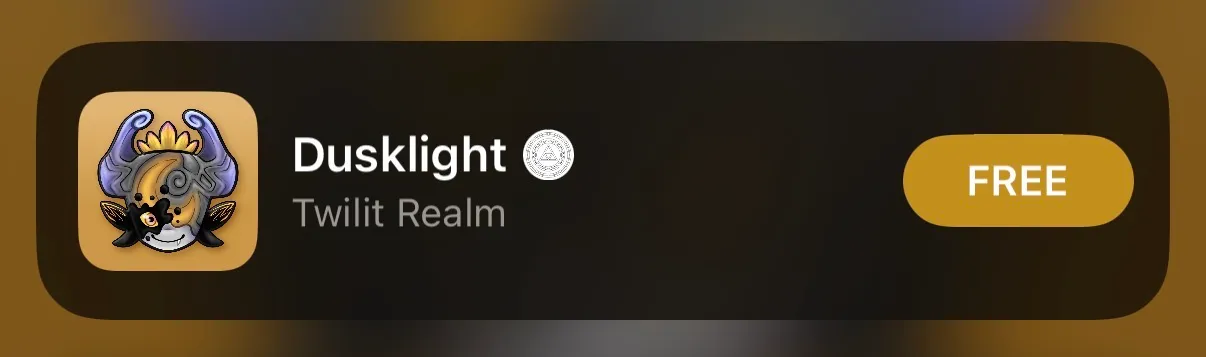
Install Dusklight from the Twilit Realm source in AltStore.
- 4
Copy files to your iPhone or iPad
Transfer your legally dumped game disc to your iPhone or iPad so it is accessible in the Files app. A few ways to transfer it:
- AirDrop: right-click the files on your Mac and choose Share > AirDrop.
- iCloud Drive: place files in iCloud Drive on your Mac and let them sync to Files.
- USB transfer: connect your iPhone and drag files from Finder's sidebar.
- Cloud storage: upload to Google Drive, Dropbox, or similar, then download on iOS.
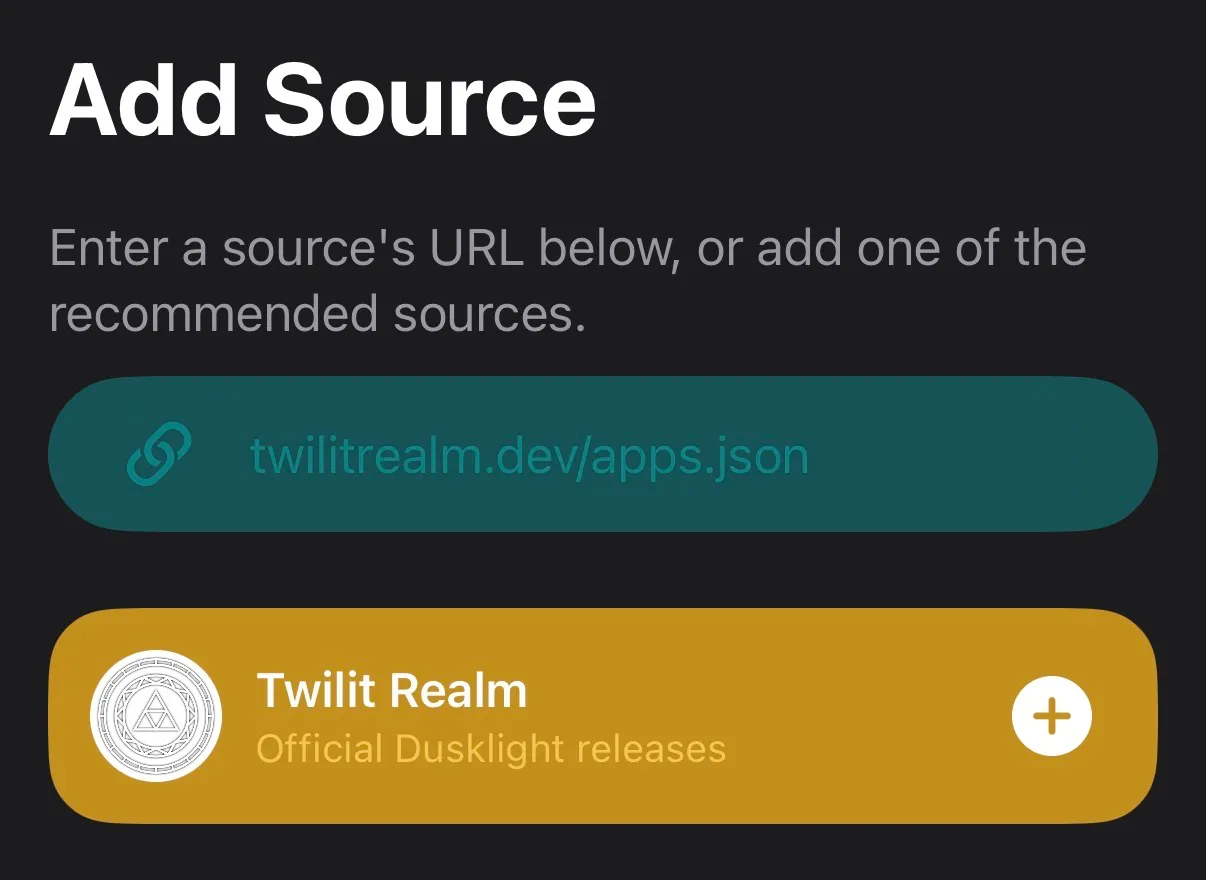
twilitrealm.dev/apps.json as a custom source.
Install with iloader
- 1
Install iloader and download the IPA
Download and install iloader from the official website or GitHub.
Download the latest iOS release:
Dusklight-vX.X.X-ios-arm64.ipa .- Windows requires iTunes to be installed.
- Linux requires usbmuxd, which is installed by default in many distributions.
- Connect your iPhone or iPad to your computer with USB.
- 2
Enable Developer Mode (iOS 16+)
On your iPhone or iPad, go to Settings > Privacy & Security > Developer Mode. Turn it on, enter your device passcode, and restart when prompted.
- 3
Install Dusklight with iloader
Sign into your Apple ID in iloader, enter your two-factor code if needed, then press
Refreshafter plugging in your device. Leave settings unchanged; the Anisette server should stay onSidestore (.io).Press
Import IPAand choose the downloaded IPA. You may be prompted to trust your device at various stages; accept those prompts when they appear. - 4
Trust Dusklight
Go to Settings > General > VPN & Device Management. Tap the Apple ID you signed into iloader with under Developer App, tap Trust, then tap Allow on the pop-up.
- 5
Copy files to your iPhone or iPad
Transfer your legally dumped game disc to your iPhone or iPad so it is accessible in the Files app. A few ways to transfer it:
- AirDrop: right-click the files on your Mac and choose Share > AirDrop.
- iCloud Drive: place files in iCloud Drive on your Mac and let them sync to Files.
- USB transfer: connect your iPhone and drag files from Finder's sidebar.
- Cloud storage: upload to Google Drive, Dropbox, or similar, then download on iOS.